Extending Your Display to a Second Monitor
Maximize your workspace productivity by configuring a dual-monitor setup across modern Windows 11, legacy Windows 7, Linux Mint, and Fedora KDE.
Windows 11: Display Settings
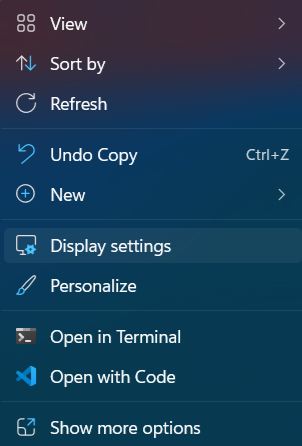
Right-click any empty space on your desktop layout and select 'Display settings' from the context menu.
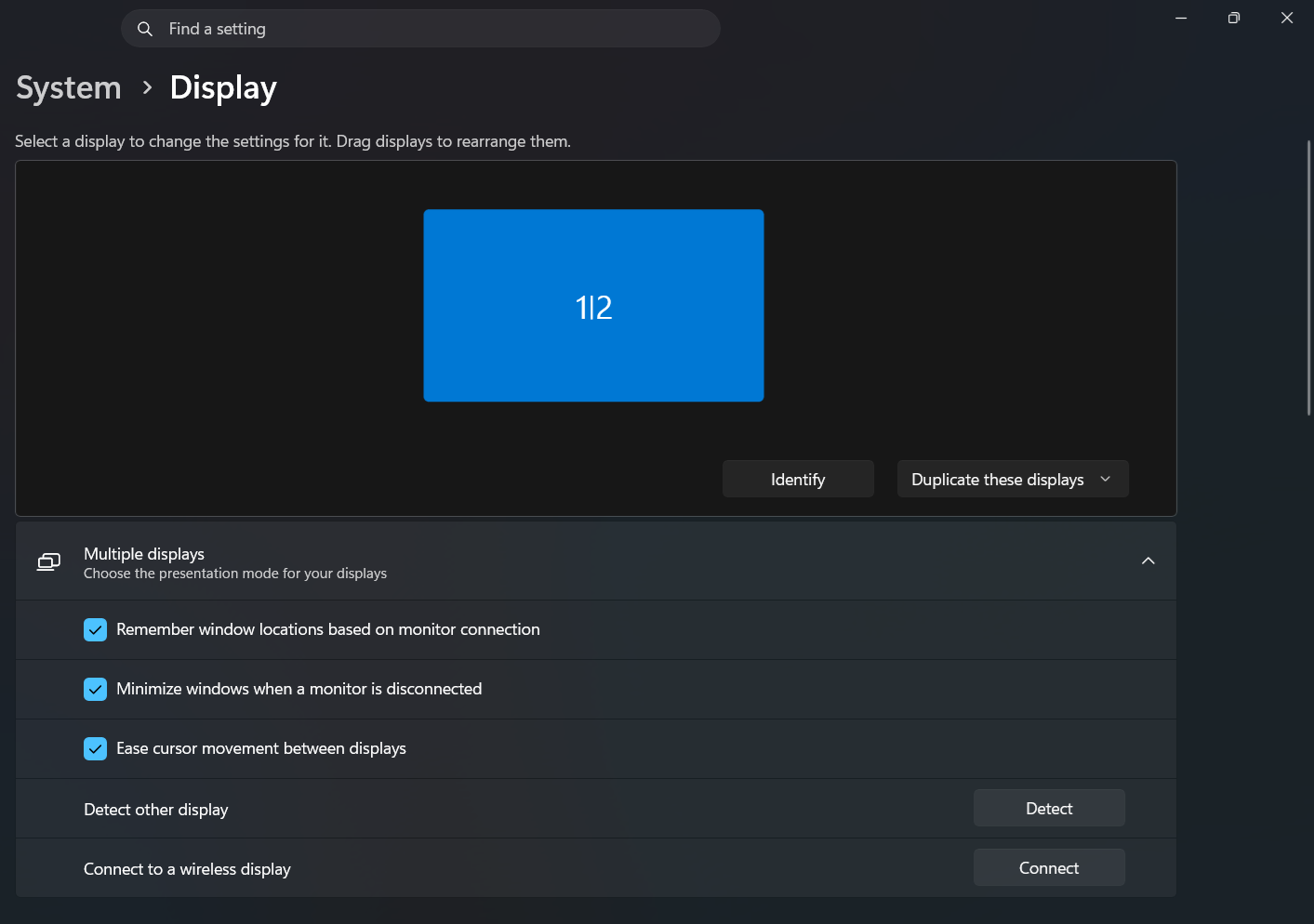
Scroll down to the 'Multiple displays' section to expand your presentation options.
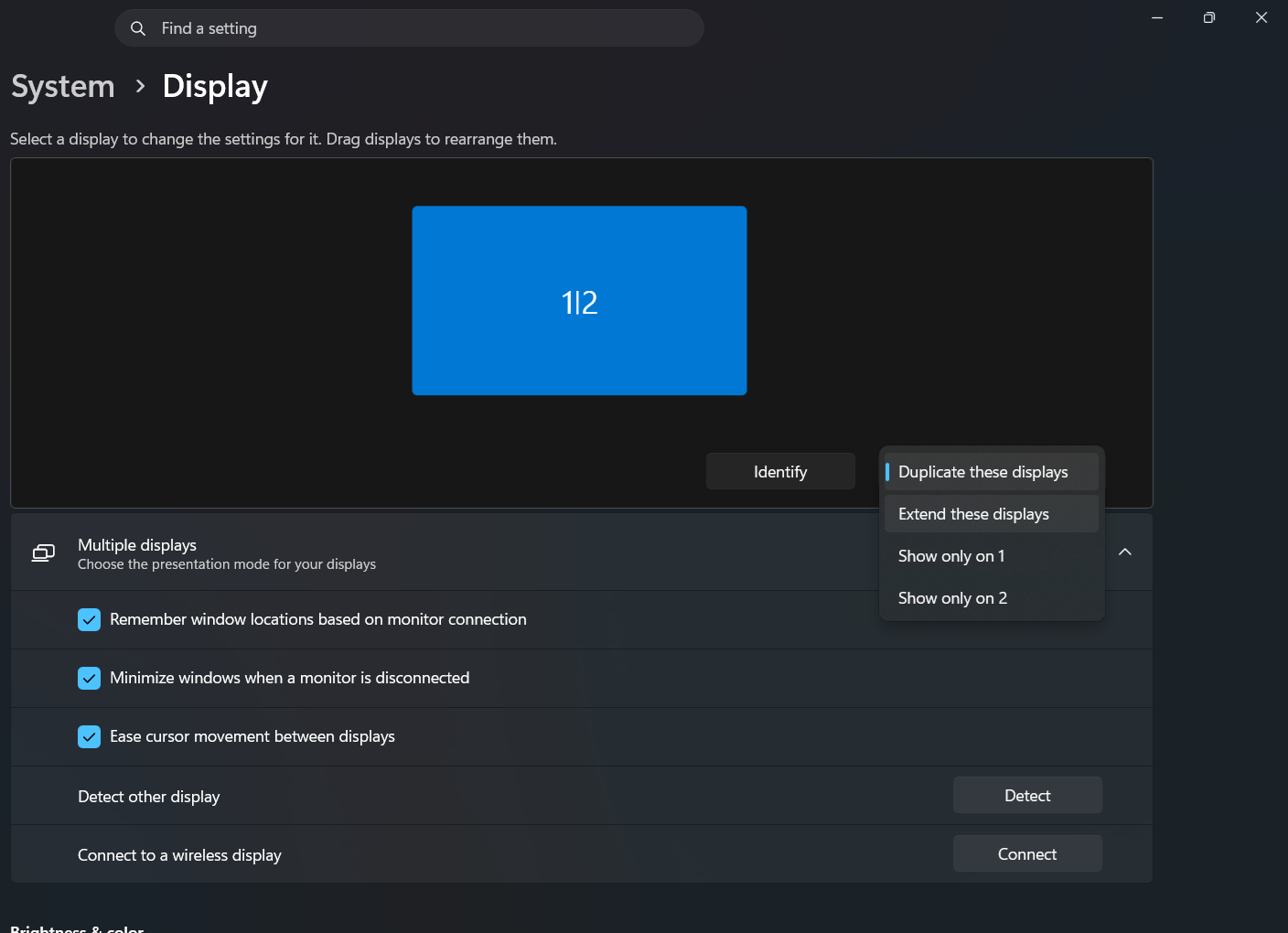
Click the dropdown menu next to the identify box and choose 'Extend these displays'.
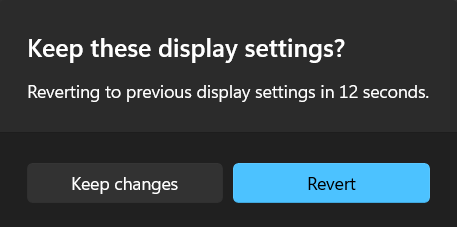
Click on 'Keep changes' inside the confirmation box. If your monitor goes blank, do not touch anything; it will automatically timeout and revert safely.
Windows 7: Legacy Screen Resolution
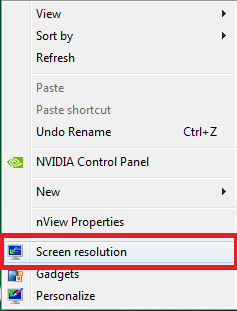
Right-click an empty space on the desktop and select 'Screen resolution'.
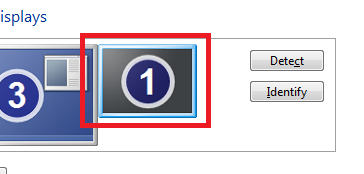
Click on the secondary monitor layout representation that appears greyed out to highlight its options.
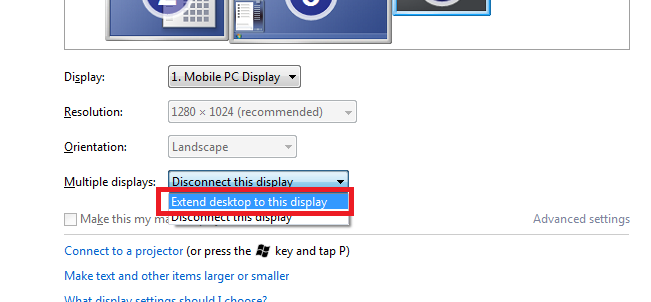
Locate the 'Multiple displays' dropdown menu and choose 'Extend desktop to this display'.
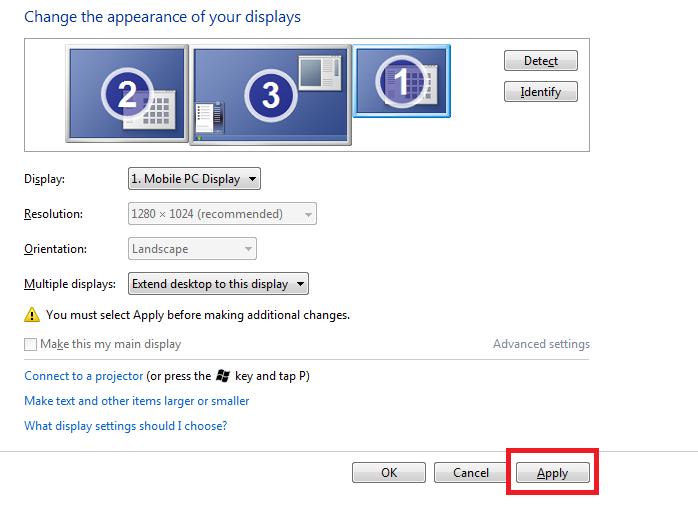
Click 'Apply' and then confirm by selecting 'Keep Changes' once the display initializes.
Linux Mint: Cinnamon Display Setup
Open the application menu, search for 'Display', and launch the panel utility.
Ensure both detected displays are toggled to 'Enabled'. Drag and arrange the monitor rectangles to visually match your physical workspace layout.
Set the orientation and choose which display should act as your primary panel containing your main taskbar, then click 'Apply'.
Fedora KDE: System Settings
Open System Settings and navigate to 'Display and Monitor' under the Hardware subsection.
Check the box for 'Enabled' on the secondary monitor layout, configure your target refresh rate, and position the panels relative to each other.
Click 'Apply' in the bottom right corner and confirm the configuration dialog to finalize your layout.